Choose the right task
Use the most specific task available and add a concise note when the work is not obvious.

END USER GUIDE · TIME & EXPENSE
Record time daily. Submit time and expenses separately each week.
01 Use your company Harvest link
02 Confirm project access
03 Keep receipts handy
IMPORTANT · BEFORE ENTERING TIME
Your project manager will provide the correct client, project, and task. Contact them before entering time or expenses if an assignment is unavailable or unclear.
PART 01 · TIME
Daily entries are faster to remember and easier for approvers to understand. Aim to finish your timesheet before your organization’s weekly deadline.
 1
1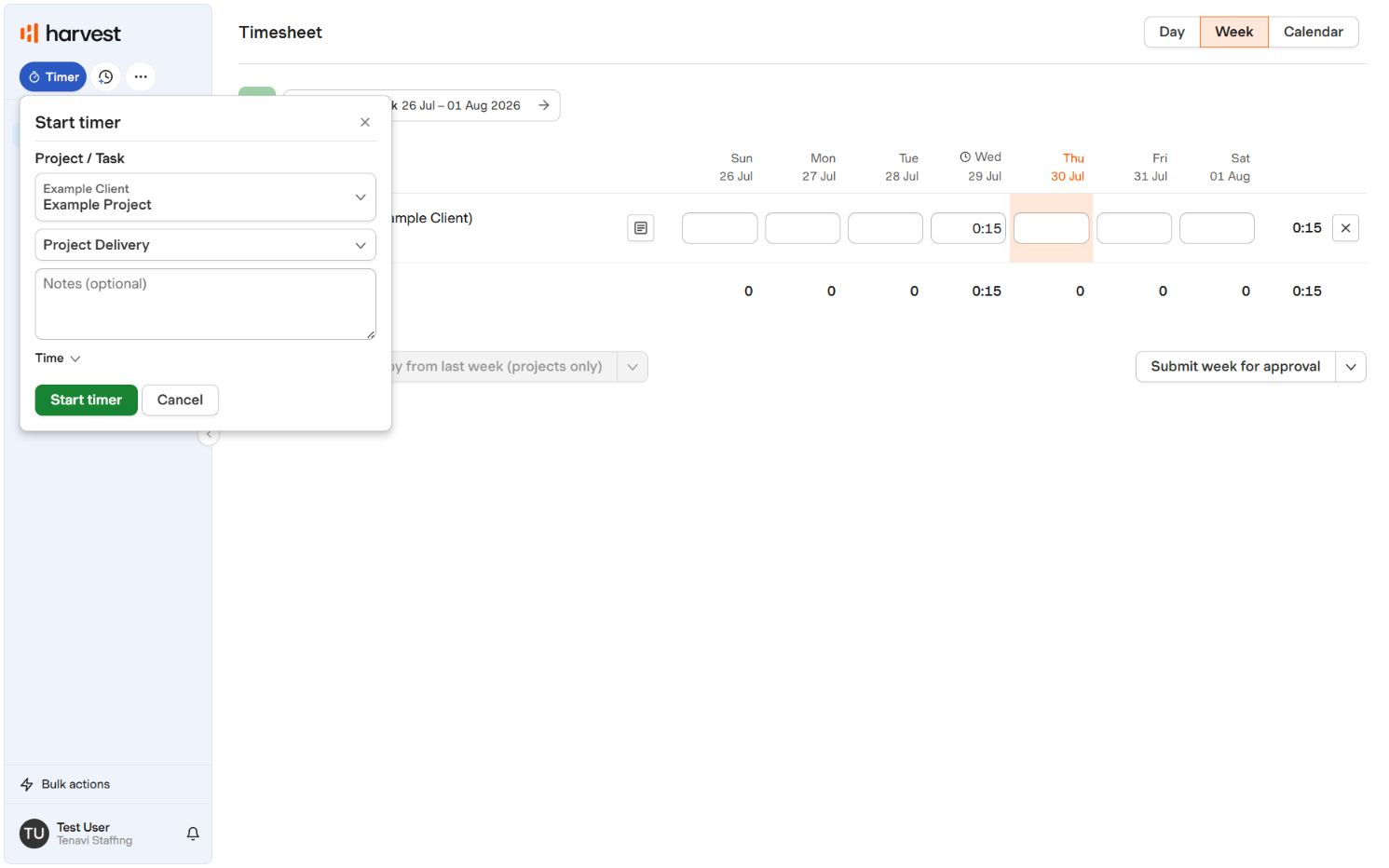 2
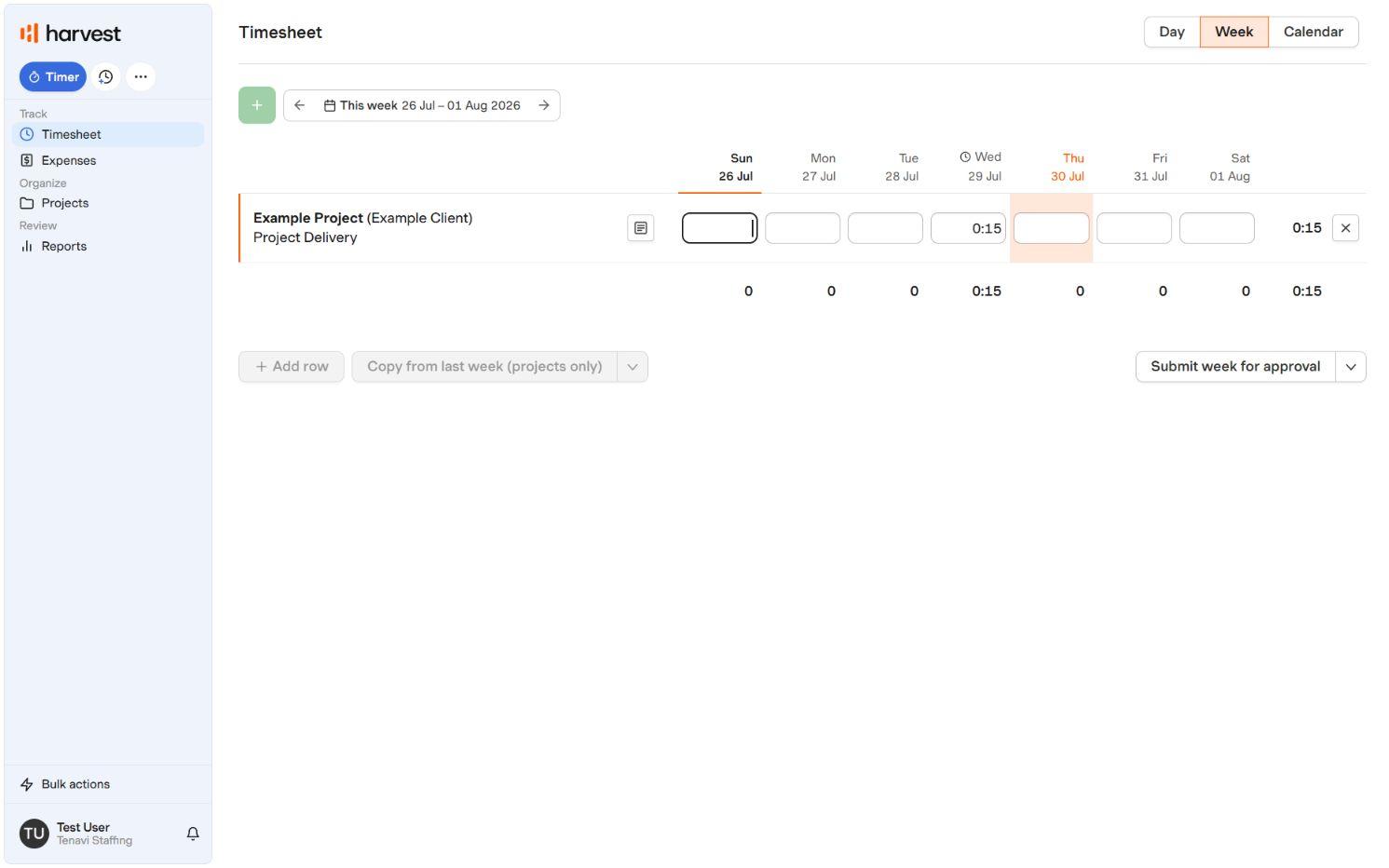
21 Week entry fields 2 Built-in Timer · Current screens from Tenavi’s Harvest account.
OPTION B · BUILT-IN TIMER
Open your timesheet and begin a new entry. Record time each day rather than waiting until the end of the week.
Choose the client, project, and task supplied by your project manager.
For manual entry, type the time, add an optional note, and save. Alternatively, start the timer when work begins and stop it when finished.
Confirm daily entries in Day view, use Edit for corrections, then review Week view and submit the completed week for approval.
Use the most specific task available and add a concise note when the work is not obvious.
Use the normal time-entry process. A 40-hour weekly capacity is a planning value, not a prohibition on overtime entry.
If you used a timer, stop it before adding time manually for the same work.
PART 02 · EXPENSES
A complete expense includes the correct project, a business purpose, and a readable receipt. Submit promptly while the details are fresh.
USE THE CORRECT ASSIGNMENT
Your project manager provides the assigned project. Choose the expense category that matches the purchase.
 123
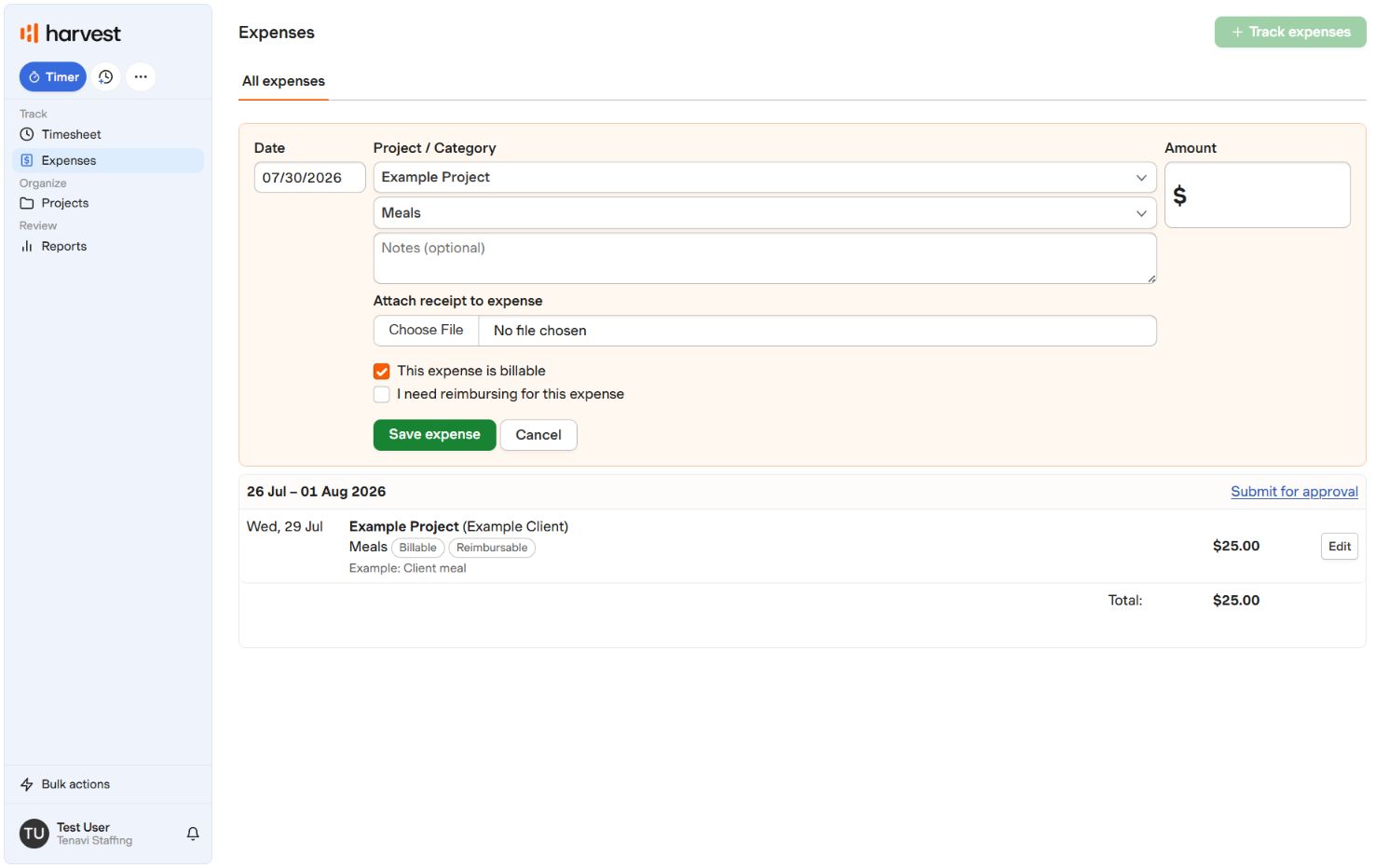
123Open Expenses and start a new expense entry.
Select the project for the expense and the correct expense category.
Enter an optional note and the amount, then attach the receipt file.
Confirm the billable and reimbursement choices, then select Save expense.
Review the saved expenses and total, then select Submit for approval. This does not submit your time.
THE RECEIPT CHECK
60-SECOND REVIEW
HELP DESK
No. Tenavi’s Harvest setup uses separate weekly submission controls. Submit the completed timesheet from Week view, then submit the week’s expenses from Expenses.
First check that you selected the correct week. If the project is still missing, contact your project manager or Harvest administrator to confirm your assignment.
If the timesheet is still editable, withdraw or update it. If it is locked, ask your approver to return it so you can correct and resubmit it.
Try a clear JPG, PNG, or PDF with a smaller file size. If it still fails, save the entry and contact your internal support team.
Harvest tracks submission and approval; reimbursement timing follows your organization’s finance schedule. Check with your finance or payroll contact.
Tenavi policy requirements are governed by the Employee Handbook. Harvest’s mobile app is also available for time and expense entry.